How to Claim Your Business in ChatGPT (2026 Guide)
ChatGPT Business Hub opened 10 November 2026. The step-by-step walk-through to claim your business profile, pass verification and get the blue tick.
TL;DR
OpenAI opened ChatGPT Business Hub on 10 November 2026. It works a bit like Google Business Profile: a listing for your business inside ChatGPT, with a blue verified tick when you claim it. Claiming is free and takes 15 to 20 minutes, plus a short wait while OpenAI approves you. Have your ABN, photo ID and a way to prove you own the business ready (phone, email, DNS or Shopify). Claim early. Until you do, anyone can try to claim your listing.
Why this matters
ChatGPT now shows business profiles, a bit like Google Business Profile. OpenAI opened Business Hub on 10 November 2026 (it's still in beta). ChatGPT may already show a listing for your business, whether you've claimed it or not.
Claiming it lets you fix your details, get the blue verified tick and see how often ChatGPT mentions you. It's free. Plan on 15 to 20 minutes, plus a short wait for OpenAI to approve you.
If you're still working out why AI visibility matters for an Australian business in the first place, the GEO overview and the piece on how to get cited by ChatGPT and Perplexity are the companion reads.
Before you start
Have these ready so you don't get stuck halfway:
- A ChatGPT account the business will keep. Use your own login, not a freelancer's or ex-staff member's. Whoever owns this account owns the profile.
- One way to prove you own the business. ChatGPT will offer one or more of these: your business phone number, your business email, access to your website's DNS settings, or your Shopify login.
- Photo ID. A passport or driver licence for the identity check.
- Your business details as they appear on official records. Business name, address and ABN should match exactly.
- A short description (300 characters max) and your logo.
Step 1: Open Business Hub
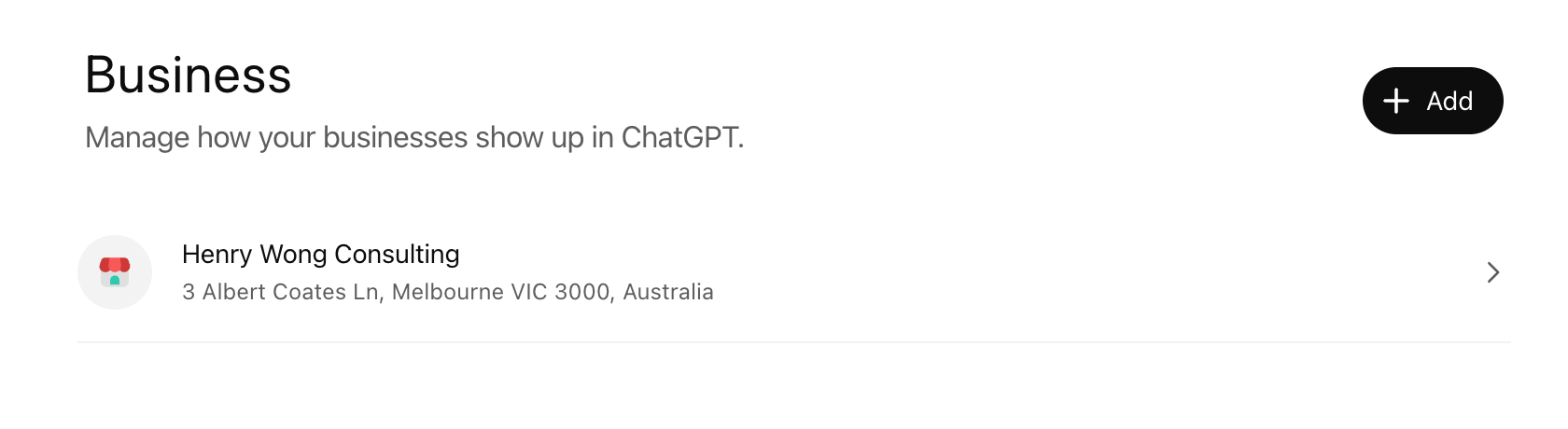
Go to chatgpt.com/business-hub and sign in. You can also open it from Business in the ChatGPT sidebar.
You'll land on the Business page. Any profiles you manage appear here. Click + Add in the top right corner to start a new claim.
Step 2: Search for your business
Type your business name into the Search business box.
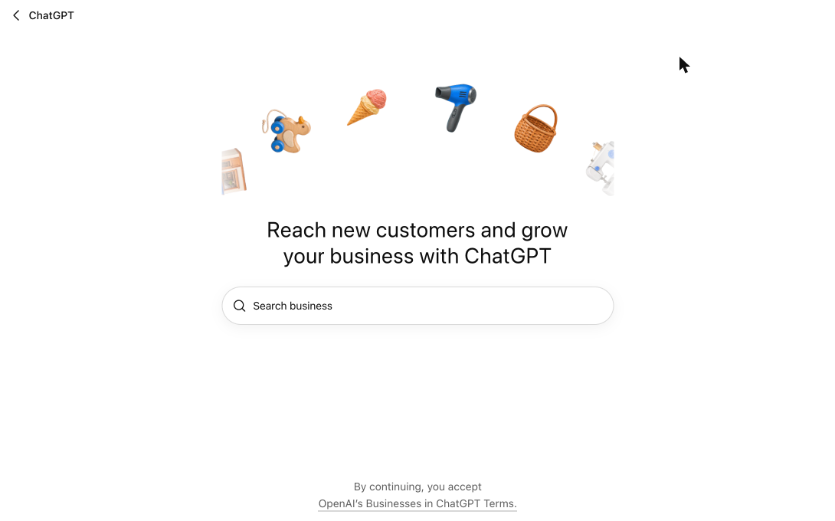
ChatGPT shows matching listings with their addresses. Pick the one with your correct address. If your business isn't listed, click Create '[your business name]' at the top of the list.
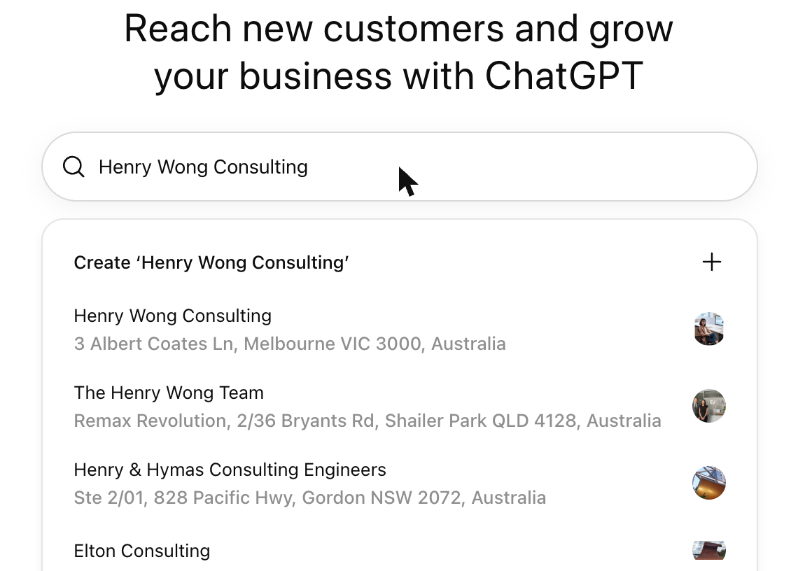
By continuing, you accept OpenAI's Businesses in ChatGPT Terms.
Step 3: Tell ChatGPT how customers reach you
You'll be asked how customers usually deal with you. Choose At a physical location if people visit you, or Through a website if you sell or work online (including service businesses).
Step 4: Prove you own the business
ChatGPT only shows the options that fit your listing. Use whichever is easiest:
- Business phone: you'll get a code by text or automated call on the number in the listing.
- Business email: you'll get a code at your business email address.
- Website domain: ChatGPT gives you a TXT record to add in your domain's DNS settings. Add it, then click Verify domain.
- Shopify: connect and log in to your Shopify store.
Tips for the website option:
- Enter only the short record name ChatGPT shows you. Most DNS hosts add your domain on the end automatically, and typing the full name breaks the record.
- Use the copy buttons rather than retyping. The code mixes capital I and lowercase l, which look the same.
- The record expires after about a day, so finish the claim the same day.
- If someone else looks after your website, ask them to add the record while you're in the flow.
Step 5: Add your category and description
ChatGPT suggests a business category. Check it. The suggestion can be wrong, so search the list for the closest match to what you actually do.
Then fill in More about your business. You get 300 characters, and anything longer is cut off. Say who you help and what you do, in your customers' words. Skip slogans.
Next come delivery and returns questions. These are written for online shops. If you're a service business, choose We don't offer delivery and no returns.
Step 6: Verify your identity
Your profile is now saved as a draft. Nothing goes live until you pass an identity check with Persona, OpenAI's verification partner.
You'll need your photo ID, and you may be asked for business registration details (your ABN) and proof you're allowed to represent the business. Make sure your business name, address and ABN match your official records, or the check can fail.
You can finish this later from the Business tab. OpenAI emails you once your claim and identity check are approved. Once approved, a new profile publishes automatically.
Step 7: Check and tidy your profile
Once approved, open your business from the Business page. You'll see your profile overview with your insights underneath.
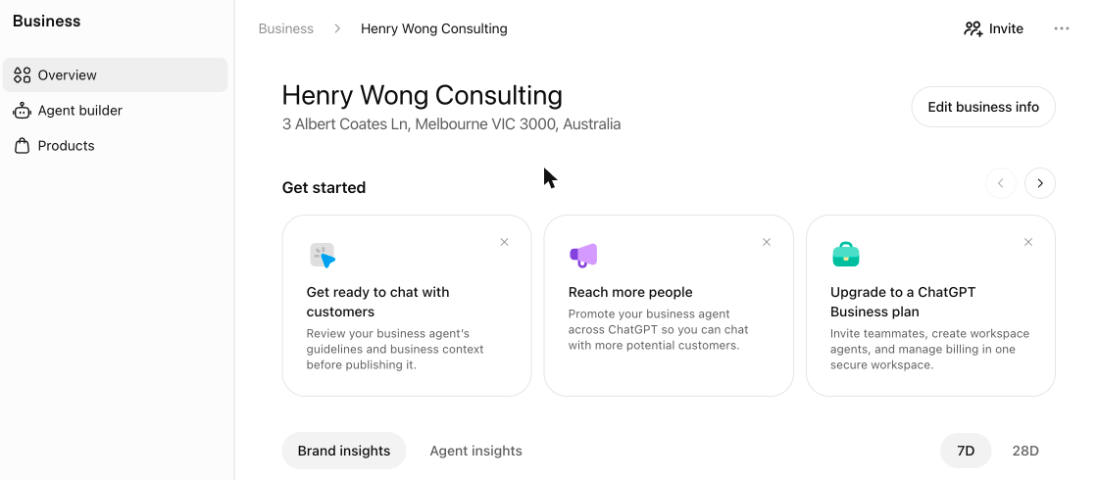
Click Edit business info. There are five tabs: About, Contact, Photos, Location and Hours. The preview on the right shows how your profile looks inside ChatGPT. The blue tick next to your name confirms the profile is verified.
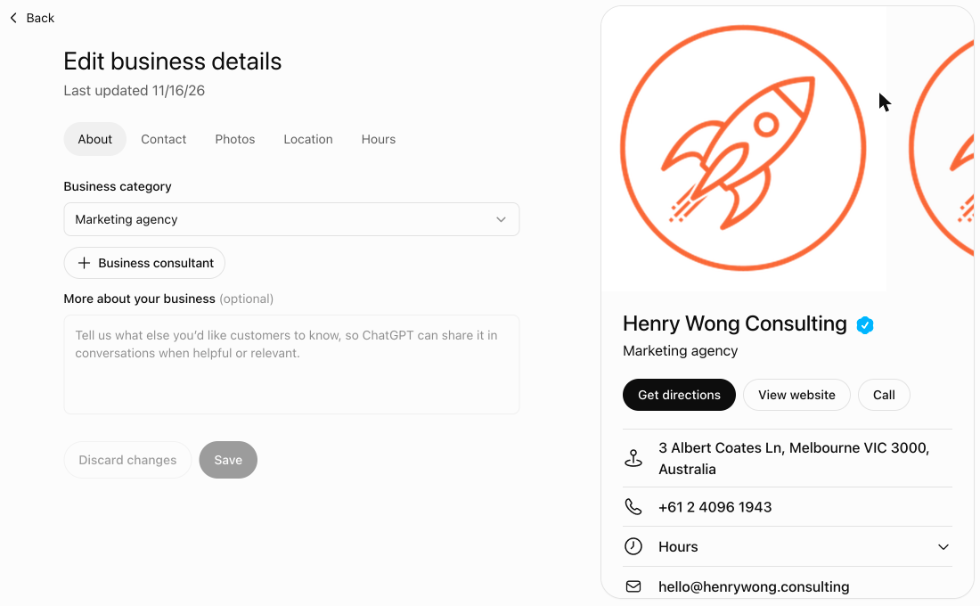
Work through each tab:
- About: check your category and add your description.
- Contact: check your phone number, email and website. ChatGPT sometimes pulls an old or wrong number.
- Photos: add your logo and a cover photo.
- Location and Hours: make sure they're current.
OpenAI reviews changes before they go live, so edits can take a little while to show.
What you'll see after
Your Brand insights show how often ChatGPT mentions your business, website clicks, and the topics people find you through, over the last 7 or 28 days. They may be blank at first. That usually means there isn't enough data yet, not zero activity.
If you want a broader view of how often AI tools are mentioning your brand (across ChatGPT, Perplexity, Google AI Overviews and others), our AI Visibility Audit runs the same category and brand queries through multiple models and tells you where you stand.
If something goes wrong
- The code doesn't arrive: wait a few minutes and try again, or pick another verification method.
- You can't find your business: use Create at the top of the search results. If that option doesn't show, get in touch.
- Someone else has already claimed it: open the listing, click the three-dot menu and choose Dispute ownership. You'll need to pass the identity check.
- The identity check fails: check your name, address and ABN match your official records exactly, then use Try again.
- Your edits aren't showing: OpenAI reviews them first. Give it a day before chasing.
Good to know
- Business Agents (a chat assistant on your profile) are only available to US businesses for now.
- If you're an existing OpenAI Enterprise customer or advertiser, your OpenAI rep handles the claim for you.
Need a hand?
We're happy to walk you through it or handle the website verification for you. Book a consultation. If you want the bigger picture (what ChatGPT is already saying about you, what to fix on your site to get cited more often) start with the AI Visibility Audit.
Source: OpenAI Help Centre, Setting up your business on ChatGPT.
Frequently asked questions
Is ChatGPT Business Hub free?
Yes. As of November 2026, claiming your business and running the profile is free. It's still in beta, so OpenAI may change pricing later.
Does my business already have a ChatGPT listing?
Maybe. Open chatgpt.com/business-hub, click + Add and search for your business name. If a listing appears with your address, that's yours to claim. If nothing appears, you can create one.
Can anyone claim my business?
Until you claim it, someone else can try. That's the main reason to claim early. The Persona identity check is the safeguard, but it's much easier to lock the listing down first than to fight a dispute afterwards.
How long does OpenAI take to approve a claim?
OpenAI doesn't publish a set time. It emails you once your claim and identity check are approved. It takes longer if your business name, address or ABN don't match your official records exactly.
What if the phone number or website on my listing is wrong?
Claim the profile first, then open Edit business info and fix the Contact tab. Changes go through OpenAI's review, so give it a day or so before they appear.
Do I need a physical location to claim a business?
No. In Step 3 you can choose Through a website if you sell or work online, including service businesses with no shopfront.
Can my agency or web developer claim it for me?
They can help with the DNS verification step, but the ChatGPT account that owns the profile should be yours. Whoever owns the account owns the profile, and you don't want that to be a contractor who might leave.
What's the difference between ChatGPT Business Hub and Google Business Profile?
Both are business listings tied to a verified owner. Google Business Profile powers the Google Map Pack and Google Search. ChatGPT Business Hub shapes how ChatGPT describes your business in conversations. You should claim both.
Will this help me show up in AI Overviews or other AI tools?
Claiming your ChatGPT profile only affects ChatGPT. Google AI Overviews, Perplexity and the others have their own ways of choosing sources. For a wider lift in AI visibility, start with how to get cited by ChatGPT and Perplexity and our GEO overview.